Introduction
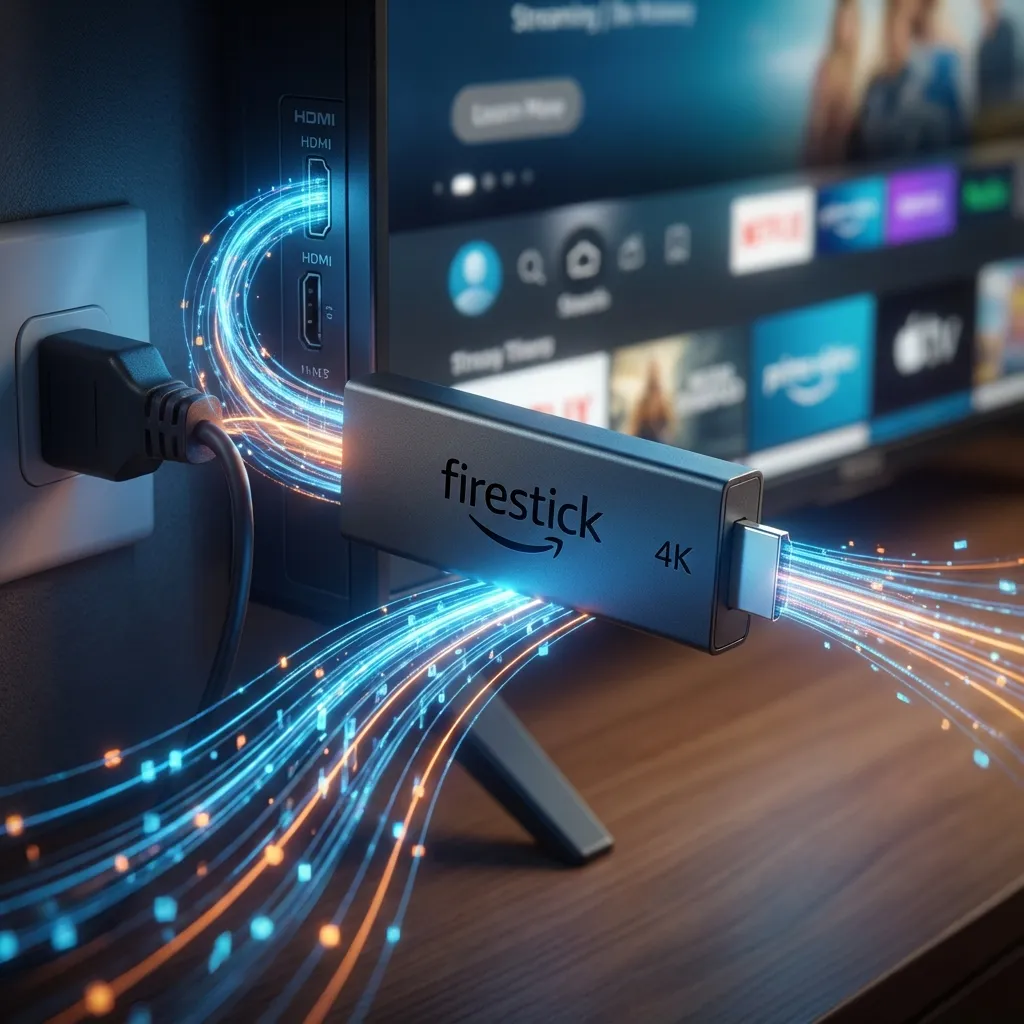
The Amazon Firestick 4K Max is the undisputed king of streaming devices. For under $50, you get a powerful android-based stick capable of Dolby Vision and Atmos. However, Amazon blocks IPTV apps from their official store to protect their own Prime Video sales.
To watch IPTV With 4K, you need to "Sideload" the application. This sounds technical, but it is actually a simple built-in feature. In this guide, we will teach you exactly how to install 4K IPTV on Firestick in roughly 7 minutes.
Phase 1: Unlocking the Firestick (Developer Options)
Amazon hides the ability to install outside apps by default. Here is how to unhide it:
- Start at the Home Screen of your Firestick.
- Scroll to the Settings Icon (the Gear) on the far right.
- Click on My Fire TV.
- Look for Developer Options.
- If you DO NOT see Developer Options: Click on About. Then highlight Fire TV Stick 4K and click the center button on your remote 7 times fast. A message will pop up saying "You are now a developer". Press Back.
- Click Developer Options.
- Turn ON ADB Debugging.
- Turn ON Apps from Unknown Sources. (Ignore the scary warning message, it is standard legal text).
Phase 2: getting the "Downloader" App
Since we can't use the Amazon App Store for IPTV, we need a browser/downloader tool to go get the file for us.
- Press the Home button.
- Click Find (Magnifying Glass).
- Type Downloader.
- Select the orange app icon named "Downloader".
- Click Get or Download.
- Once finished, click Open.
- Click Allow when asked for file permissions (Crucial!).
Phase 3: Installing the 4K IPTV App
Now we actually install the player. You can use our customized App, or common players like IPTV Smarters Pro or TiviMate.
- Open Downloader.
- Click into the URL box where it says `http://`.
- Enter one of the following codes:
- IPTV Smarters Pro: 78522
- TiviMate 4K (Premium): 19283
- IPTV With 4K Official App: (Check your welcome email for the latest code)
- Click Go. The APK file (approx 80MB) will download.
- When prompted, click Install in the bottom right corner.
- Once installed, click Done.
- Pro Tip: Click Delete on the APK file to save space on your stick.
Phase 4: Login and Optimization
You have installed the app. Now let's connect it to the IPTV With 4K servers.
- Open the App (found in your "Apps & Channels" list).
- Select Login with Xtream Codes API (This is faster and more stable than M3U Playlist).
- Enter the details from your email:
- Name: IPTV With 4K (or anything you want)
- Username: (Case Sensitive)
- Password: (Case Sensitive)
- URL: http://line.iptvwith4k.us
- Click Add User.
Troubleshooting Common Errors
"Parse Error" or "App Not Installed"
This usually means you have run out of storage space on your Firestick. Go to Settings > Applications > Manage Installed Applications and uninstall unused apps like bloatware games.
Buffering on 4K Channels
If HD works but 4K buffers, your Firestick might be struggling with the Wi-Fi signal.
Fix: Use the HDMI Extender cable that came with your Firestick to move it away from
the back of the TV (which blocks Wi-Fi signals). Alternatively, buy an Ethernet Adapter for hardwired
speed.
Conclusion
Congratulations! You have successfully learned how to install 4K IPTV on Firestick. You now have access to over 20,000 channels and infinite entertainment. If you get stuck, our support team is available 24/7 via WhatsApp to help guide you through the process.